Deploying a template
Before you can start testing a template you have created you must deploy it the NETLOGON folder where the DS Client is.
Clicking the "Publish to Share" will copy the template from your local repository to the Deployment servers NETLOGON\DynamicSignature folder, along with a configuration file with .ini extension and create a VBScript file to use to run this specific template.
Here you can see the configuration files for your templates. The configuration files contain setting information for each your deployed templates and is used by the DS Client Application.
.png)
Here you see the content of a template folder
.png)
And here you see the created VBScript files for running the specific templates
NB: As of vers. 6.8.5 DS Manager has switched to using PowerShell scripts. MS announced earlier in the year that they are retiring support for vbs.
When publishing, DSM now produce a .ps1 file, but it will not remove your existing vbs files, since they may still be linked to GPO's. So modify you GPO's at your leasure, and then manually remove the .vbs files.
For information about how to setup a GPO with Powershell please read further down this page.
.png)
The content of the VBScript file
.png)
Notice the "True" parameter. It will have the script wait for the process to end, before proceeding with next line. This of cause has no real effect here since there is only one line of execution. But if you decide to run multiple signatures, you can just copy this line into another script file, along with lines from other script files. This way you can make sure that the DS Client will run nicely in sequence, instead of all running at the same time.
Example:
Set objShell = CreateObject("WScript.Shell")
objShell.Run "\\company.local\NETLOGON\DynamicSignature\DSClient\DynamicSignature.exe /I:Adoc.ini" ,,True
objShell.Run "\\company.local\NETLOGON\DynamicSignature\DSClient\DynamicSignature.exe /I:Alexei.ini" ,,True
You can also use BAT files if you are more comfortable with that.
Then just copy the call inside the quotes into the BAT file:
\\company.local\NETLOGON\DynamicSignature\DSClient\DynamicSignature.exe /I:Alexei.ini
Going Live
When you have done testing the template that you have developed and want to put it into production, you should remember to Disable the Action Progress Window.
The users will not need to see this, and it will speed up a lot. For testing purposes, it was necessary to add a lot of artificial pauses. Without these pauses you would not be able to see what happens.
When you disable the progress windows all the pauses will be removed, and generation time will go down to approx 1 sec.
Go to the "Template Configuration Settings" and find the "ShowProgress" parameter. Set it false.
PowerShell vs Regular Script Pane
The regular "Scripts" pane is legacy and intended for traditional batch files (*.bat, .cmd), VBScript (.vbs), and other Windows Script Host (WSH) scripts, which are run by default by the system’s associated script interpreter.
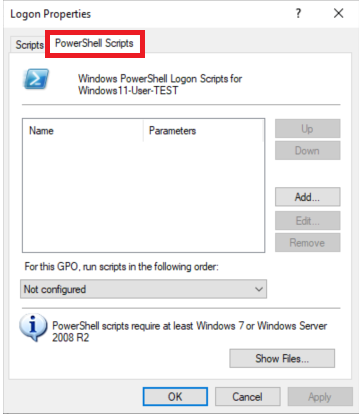
The special "PowerShell Scripts" tab/pane allows administrators to assign *.ps1 scripts directly, and the Group Policy infrastructure then ensures these scripts are started using powershell.exe with appropriate parameters.
Key Benefits of the PowerShell Script Pane
Automatic Interpreter Selection: Scripts added here are guaranteed to be run by PowerShell without requiring the admin to wrap them in a batch file.
Execution Policy Handling: GPO runs PowerShell scripts with -ExecutionPolicy Bypass by default, eliminating common issues where scripts would otherwise fail due to more restrictive execution policies.
Parameters and Logging: The interface is designed to allow passing parameters, consistent ordering, and logging, tailored for PowerShell’s needs rather than legacy script types.
Why This Matters
Powershell scripts enforce stricter security than batch files, so the special pane helps GPO admins handle these differences seamlessly.
This prevents execution errors and simplifies the deployment process compared with the prior workaround of using batch wrappers to launch PowerShell scripts.